
Controlling column widths
Task
The article list from the recipe Simple table with automatic breaking gets a column with application notes: running text next to short technical values. Article number, dimensions, PU and price should stay stable on a single line; the remaining space goes to the application text.
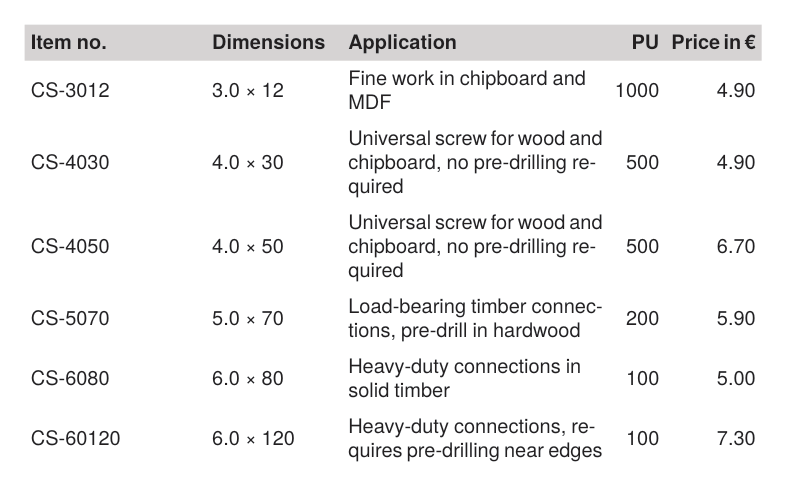
Decision
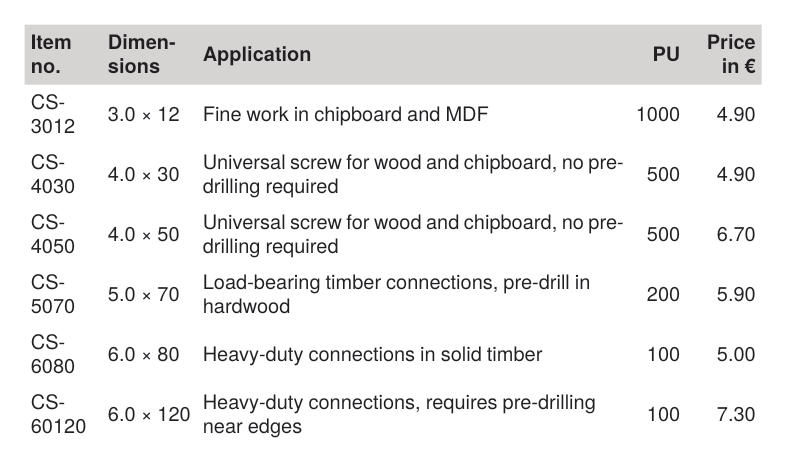
Without further instructions the Publisher distributes the column widths by itself, based on the contents. That is fine as long as the contents are short and uniform; the article list in the first recipe therefore worked without any width settings. How to recognize that the automatic distribution no longer works:
- One column contains running text. The automatic distribution then takes the space from the short columns, and values that belong together start to wrap there.
- Unbreakable values wrap. Article numbers or dimensions like “6.0 × 120” end up on two lines; the column heads hyphenate as well.
- Images in cells need a reliable column width, otherwise the image size depends on the contents of the other rows.
- Several tables on the same page should share the same column alignment. The automatic distribution calculates each table on its own, so the columns end up offset against each other.
This is what the failure looks like with automatic distribution, same data as above:
Solution
Step 1: declaring the columns
The column widths are declared with <Columns>, as the first element inside <Table>. The stable columns get fixed widths:
<Table stretch="max" padding="3pt">
  <Columns>
    <Column width="32mm"/>
    <Column width="24mm"/>
    <Column width="1*"/>
    <Column width="10mm" align="right"/>
    <Column width="17mm" align="right"/>
  </Columns>
  ...
Fixed widths can be given in absolute units (32mm) or in grid cells (number without a unit). The width must also accommodate the column head, not just the values; when in doubt, measure the longest head.
Step 2: the rest via star widths
The application column gets width="1*": star columns share the space that remains after the fixed widths are subtracted. With several star columns the space is distributed in the ratio of the numbers: 2* receives twice as much as 1*. The numbers may have decimals (1.5*), a star on its own means 1*. This gives the usual mixed form: fixed widths for everything technical, star widths for the text.
Step 3: alignment on the column instead of the cell
The attribute align can be set directly on <Column>; this removes the need for the align="right" on every single cell that was still necessary in the first recipe. Individual cells can still override the column setting.
Complete example
The runnable project is also available in the examples repository. The small page format only serves the compact illustration.
<Layout xmlns="urn:speedata.de:2009/publisher/en"
  xmlns:sd="urn:speedata:2009/publisher/functions/en">

  <Pageformat width="148mm" height="105mm"/>

  <Record element="data">
    <PlaceObject>
      <Table stretch="max" padding="3pt">
        <Columns>
          <Column width="32mm"/>
          <Column width="24mm"/>
          <Column width="1*"/>
          <Column width="10mm" align="right"/>
          <Column width="17mm" align="right"/>
        </Columns>
        <Tablehead>
          <Tr background-color="lightgray">
            <Td><Paragraph><B><Value>Item no.</Value></B></Paragraph></Td>
            <Td><Paragraph><B><Value>Dimensions</Value></B></Paragraph></Td>
            <Td><Paragraph><B><Value>Application</Value></B></Paragraph></Td>
            <Td><Paragraph><B><Value>PU</Value></B></Paragraph></Td>
            <Td><Paragraph><B><Value>Price in €</Value></B></Paragraph></Td>
          </Tr>
        </Tablehead>
        <ForAll select="group/article">
          <Tr>
            <Td><Paragraph><Value select="@number"/></Paragraph></Td>
            <Td><Paragraph><Value select="@dim"/></Paragraph></Td>
            <Td><Paragraph><Value select="@application"/></Paragraph></Td>
            <Td><Paragraph><Value select="@pu"/></Paragraph></Td>
            <Td><Paragraph><Value select="@price"/></Paragraph></Td>
          </Tr>
        </ForAll>
      </Table>
    </PlaceObject>
  </Record>
</Layout>
The data is an excerpt from the Confixa set; new is the attribute application with the application note:
<data company="Confixa">
  <group name="Chipboard screws" code="CS" material="steel, zinc plated">
    <article number="CS-3012" dim="3.0 × 12" drive="TX10" pu="1000" price="4.90"
             application="Fine work in chipboard and MDF"/>
    <article number="CS-4030" dim="4.0 × 30" drive="TX20" pu="500" price="4.90"
             application="Universal screw for wood and chipboard, no pre-drilling required"/>
    <article number="CS-4050" dim="4.0 × 50" drive="TX20" pu="500" price="6.70"
             application="Universal screw for wood and chipboard, no pre-drilling required"/>
    <article number="CS-5070" dim="5.0 × 70" drive="TX25" pu="200" price="5.90"
             application="Load-bearing timber connections, pre-drill in hardwood"/>
    <article number="CS-6080" dim="6.0 × 80" drive="TX30" pu="100" price="5.00"
             application="Heavy-duty connections in solid timber"/>
    <article number="CS-60120" dim="6.0 × 120" drive="TX30" pu="100" price="7.30"
             application="Heavy-duty connections, requires pre-drilling near edges"/>
  </group>
</data>
Variant: shares in percent
Instead of absolute units, columns can also be given as a share of the table width. This is handy when the same table appears in different widths, for example in one and in two columns, and the proportions should stay the same:
<Columns>
  <Column width="22%"/>
  <Column width="16%"/>
  <Column width="*"/>
  <Column width="7%" align="right"/>
  <Column width="12%" align="right"/>
</Columns>
The percentages refer to the table width without the column distances (columndistance); the star column gets the rest as before, 43% here. Percentages, fixed widths and stars can be mixed freely. Keep in mind that percentage columns shrink with the table: for values that must not wrap, fixed widths are the safer choice.
Variant: width by content
Fixed widths have to be measured and only fit as long as the data does. If a column should follow its content, there are the keywords max and min and the attribute minwidth:
max: the column gets the width of its content without line breaks (the natural width). If there is not enough room, it gets narrower, but never narrower than its widest word.min: the column is as narrow as its widest word, the text wraps as often as possible.minwidth: a lower bound for the column width, for example so that a column with short values does not look cramped.
min and max can be combined with fixed widths, percentages and star widths, the star columns get the rest:
<Columns>
  <Column width="max"/>
  <Column width="max" minwidth="20mm"/>
  <Column width="*"/>
  <Column width="max" align="right"/>
  <Column width="max" align="right"/>
</Columns>
For the article list this is an alternative to the measured widths from step 1: article number, size, packing unit and price get exactly the width they need, the application text gets the rest. The price for this: the widths depend on the data, two tables with the same <Columns> no longer share their column alignment.
Another option is ?. Such columns are calculated from their contents as in a table without <Columns>, while the other columns keep their fixed widths. With stretch="max" the ? columns share the space that remains after the fixed widths in the ratio of their natural widths:
<Table stretch="max">
  <Columns>
    <Column width="32mm"/>
    <Column width="?"/>
    <Column width="?"/>
  </Columns>
  ...
Without stretch="max" the ? columns get their natural width, so the table may be narrower than requested. If the same table has star, min or max columns, ? behaves like max. A <Column> without width, for example only with align, counts as ?.
All width settings at a glance
| Setting | Example | Effect |
|---|---|---|
| Length | 32mm, 1.5cm, 40pt, 8em | fixed width; em refers to the font size of the table |
| Number | 4, 2.5 | fixed width in grid cells (see <SetGrid>) |
| Percentage | 25% | fixed share of the table width without the column distances |
| Star | 1*, 2.5*, * | share of the space that remains after all other columns |
max | natural width of the content, narrower if space is short, but not narrower than the widest word | |
min | width of the widest word | |
? | natural width of the content; with stretch="max" a share of the remaining space in the ratio of the natural widths | |
minwidth | minwidth="20mm" | separate attribute: lower bound for every column width |
A few rules apply:
- Table width: percentages and star widths refer to the width of the table. It is set with
widthon<Table>, as a length or in grid cells; without it, the table takes the available width. - Only fixed widths: if the
<Columns>contain only lengths, grid cells and percentages, the table is exactly as wide as their sum, even withstretch="max". - Without
<Columns>the publisher calculates the widths from the contents;stretch="max"then stretches the table to the full width. - A
<Column>withoutwidthis calculated from its contents like?. minwidthapplies to all settings: a fixed width is raised tominwidth, for star columns the remaining space is shared among the other star columns.
Limits
- The text still does not fit: If the star column becomes too narrow, the only options are shortening, a smaller font or checking the hyphenation (attribute
language); a table declared wider than the type area sticks out over the margin. - The same column alignment across tables is achieved by using the same
<Columns>declaration in all tables; with only one star column the widths are then identical in all tables. With the same table width this also holds for percentages. - More examples with pictures are in the manual chapter Tables, section on column widths.
- An example with all width settings (percentages, stars,
min,max,minwidthand?) is in the examples repository. - Reference:
<Columns>and<Column>.