
Programming
Certainly the most important feature of the Publisher is the ability to implement very flexible layout requirements. This is mainly achieved by the built-in programming language in connection with the query options of the Publisher.
| The program execution runs simultaneously with the creation of the PDF. Therefore, the speedata Publisher can react very flexibly to the input data. Queries such as “Is there still enough space for this object?” are thus possible. This distinguishes the Publisher from other software for creating PDF files. |
Basic programming knowledge is required to use the full functionality of the Publisher. The programming language has been kept as simple as possible to maintain the readability of the layout.
Programming in the Publisher is based on three areas:
- Data processing: How are XML input data processed and converted into PDF output?
- Control flow: Conditions, loops and case distinctions control the processing.
- Variables and functions: Store values, reuse them and define custom functions.
How layout and data work together
Before diving into the details of the programming language, it is important to understand how layout and data interact.
The Publisher always works with two files: a data file (data.xml) and a layout file (layout.xml).
A complete minimal example:
<productlist>
  <product name="Desk lamp" price="29.95" />
  <product name="Floor lamp" price="79.00" />
  <product name="Ceiling light" price="149.90" />
</productlist>
data.xml): A simple product list with three entries.<Layout xmlns="urn:speedata.de:2009/publisher/en"
xmlns:sd="urn:speedata:2009/publisher/functions/en">
<Record element="productlist">
<PlaceObject>
<Textblock>
<Paragraph><Value>Product catalog</Value></Paragraph>
</Textblock>
</PlaceObject>
<ProcessNode select="product"/>
</Record>
<Record element="product">
<PlaceObject>
<Textblock>
<Paragraph>
<Value select="@name"/>
<Value> – </Value>
<Value select="@price"/>
<Value> €</Value>
</Paragraph>
</Textblock>
</PlaceObject>
</Record>
</Layout>
layout.xml): For each element in the data file there is a matching Record.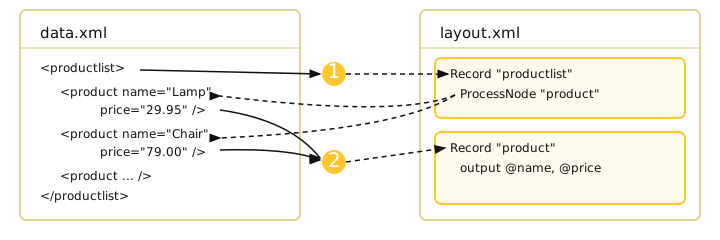
① The Publisher finds the root element <productlist> and looks for the matching Record.
② ProcessNode delegates each <product> element to the matching Record. Within a Record you have access to the attributes of the current data element: @name returns the name, @price the price.
What happens at startup?
The Publisher executes these steps:
- Read layout file: All
Recorddefinitions are stored for later processing. Commands outside of Records (e.g.DefineColor,DefineFontFamily) are executed immediately. - Open data file: The Publisher reads the XML data and starts with the root element – here
<productlist>. - Find matching Record: For
<productlist>, the Record withelement="productlist"is found and executed. - Delegate child elements: The command
ProcessNode select="product"causes the Publisher to find and execute the matching Record for each<product>element. - Data access: Within a Record, you have access to the attributes and child elements of the current data element. In the Record for
product,@namereturns the product name and@pricereturns the price.
This interplay of Record and ProcessNode is the central concept of the Publisher.
Without ProcessNode, child elements of the data file are not processed – the Publisher does not traverse the data tree automatically.
Further details on structuring the data file can be found in the chapter Structure of the data file.
Data processing with Record and ProcessNode
The basic principle of Record and ProcessNode was already introduced above.
Similar to xsl:template match and xsl:apply-templates in XSLT, Record defines processing rules for data elements and ProcessNode invokes them.
This section describes the advanced capabilities: the alternative <ForAll>, pattern matching, priorities and modes.
ForAll: processing child elements without a separate Record
As an alternative to the pair <ProcessNode>/<Record>, <ForAll> iterates directly over child elements without the need for a separate Record.
Within <ForAll> you have access to the attributes and child elements of the respective element, just like in a Record.
For the data file
<catalog>
  <article nr="12345" price="99,95" quantity="1">
    <description>Text for article 12345</description>
  </article>
  <article nr="56789" price="45,95" quantity="5">
    <description>Text for article 56789</description>
  </article>
</catalog>
the following layout creates a table row for each child element article:
<Layout xmlns="urn:speedata.de:2009/publisher/en"
  xmlns:sd="urn:speedata:2009/publisher/functions/en">

  <Record element="catalog">
    <PlaceObject>
      <Table stretch="max"> <!--1-->
        <Tablehead> <!--2-->
          <Tr background-color="gray">
            <Td>
              <Paragraph><Value>Article number</Value></Paragraph>
            </Td>
            <Td>
              <Paragraph><Value>Description</Value></Paragraph>
            </Td>
          </Tr>
        </Tablehead>
        <ForAll select="article"> <!--3-->
          <Tr>
            <Td>
              <Paragraph><Value select="@nr"/></Paragraph>
            </Td>
            <Td>
              <Paragraph><Value select="description"/></Paragraph>
            </Td>
          </Tr>
        </ForAll>
      </Table>
    </PlaceObject>
  </Record>
</Layout>
- A table is output that stretches over the whole width (see the chapter on tables).
- A table head is repeated on every page.
- Within the
<ForAll>you can access the attributes and child elements of each article.
<ForAll> is well suited for compact output in place, such as these table rows. <ProcessNode> with its own <Record> is the better choice when the processing is more extensive or needed in several places.
Pattern matching with the match attribute
Since version 5.5.8, the match attribute can be used instead of element.
This allows processing rules to be assigned based on XPath-like patterns, not just the element name.
A simple element name in match is equivalent to element:
<!-- These two lines are equivalent: -->
<Record element="product">
<Record match="product">
Beyond that, match supports additional patterns:
Predicates Allow distinguishing elements based on their attributes or content.
<Record match="item[@type='book']">
  <!-- Only executed for item elements with type="book" -->
</Record>
Parent/child patterns Enable context-dependent matching based on the parent element.
<Record match="catalog/product">
  <!-- Only for product elements whose parent is catalog -->
</Record>
Ancestor patterns Match across arbitrary nesting depth.
<Record match="catalog//item">
  <!-- For item elements anywhere below catalog -->
</Record>
Wildcards Match any element, useful as a fallback rule.
<Record match="*">
  <!-- Called for all elements that have no more specific Record -->
</Record>
Wildcards with predicates
<Record match="*[starts-with(local-name(), 'chap')]">
  <!-- Matches all elements whose name starts with "chap" -->
</Record>
Priorities with multiple matching Records
When multiple Records match a data element, the most specific one is selected.
A Record with element (or match with a simple element name) always takes precedence over pattern-based Records.
Among patterns: patterns with predicates or path expressions have higher priority than the wildcard (*).
Modes
The mode attribute allows defining different processing rules for the same element.
The mode in ProcessNode must match the mode in the corresponding Record.
mode works with both element and match.
<Record match="product" mode="summary">
  <!-- Short representation -->
</Record>

<Record match="product" mode="detail">
  <!-- Detailed representation -->
</Record>
<ProcessNode select="product" mode="summary" />
<ProcessNode select="product" mode="detail" />
Variables
All variables are globally visible. This means that a variable never becomes invalid. Here’s an example:
<data>
  <article number="1" />
  <article number="2" />
  <article number="3" />
</data>
data.xml)<Layout xmlns="urn:speedata.de:2009/publisher/en"
xmlns:sd="urn:speedata:2009/publisher/functions/en">
<Record element="data">
<ProcessNode select="article"/>
<Message select="$nr"/>
</Record>
<Record element="article">
<SetVariable variable="nr" select="@number"/>
</Record>
</Layout>
The global visibility is necessary because the program execution in the layout sometimes “jumps back and forth”. At the end of the page the content of <AtPageShipout> is executed in the current page type. It must also be possible to access the variables there.
In variables not only simple values can be stored, but also complex XML sections:
<Record element="data">
  <SetVariable variable="foo">
    <Paragraph>
      <Value>Hello world!</Value>
    </Paragraph>
  </SetVariable>

  <PlaceObject>
    <Textblock>
      <Copy-of select="$foo"/>
    </Textblock>
  </PlaceObject>
</Record>
This produces the expected output of “Hello world!”. A use case is to store table width declarations:
<SetVariable variable="tablecolumns">
  <Columns>
    <Column width="1cm"/>
    <Column width="4mm"/>
    <Column width="1cm"/>
  </Columns>
</SetVariable>
and then use them in several tables:
<PlaceObject>
  <Table>
    <Copy-of select="$tablecolumns"/>
    <Tr>
      ..
    </Tr>
  </Table>
</PlaceObject>
The one-time definition and reuse saves typing work and reduces the sources of error.
Copy-of
<Copy-of> was already used before. This copies the contents of the variable to the current position. The contents of the variables remain unchanged during copying.
variable =
   Copy-of variable
   new value
This appends the new value to the previous ones.
<SetVariable variable="chapter">
  <Copy-of select="$chapter"/>
  <Element name="entry">
    <Attribute name="chaptername" select="@name"/>
    <Attribute name="page" select="sd:current-page()"/>
  </Element>
</SetVariable>
Control flow
If-then-else
In XPath you can perform simple if-then queries. The syntax for this is if (condition) then ... else ...:
<PlaceObject>
  <Textblock>
    <Paragraph>
      <Value select="
        if (sd:odd(sd:current-page()))
           then 'recto' else 'verso'"/>
    </Paragraph>
  </Textblock>
</PlaceObject>
Case distinctions
Case distinctions are similar to the switch/case construct in C-like programming languages. They are applied in the Publisher as follows:
<Switch>
  <Case test="$i = 1">
    ...
  </Case>
  <Case test="$i = 2">
    ...
  </Case>
   ...
  <Otherwise>
    ...
  </Otherwise>
</Switch>
All commands within the first possible <Case> case are processed if the condition in test applies there. In test, an XPath expression is expected that returns true() or false(), like $i = 1, and if no case occurs, the contents of the optional <Otherwise> section will be executed.
Loops
There are various loops in the speedata Publisher. The simple variant is <Loop>:
<Loop select="10">
  ...
</Loop>
This command executes the enclosed commands as many times as the expression in select results in. The loop counter is stored in the variable _loopcounter, unless otherwise set by variable="...".
Besides the simple loop there are also loops with conditions:
<Record element="data">
<SetVariable variable="i" select="1"/>
<While test="$i <= 4">
<PlaceObject>
<Textblock>
<Paragraph>
<Value select="$i"/>
</Paragraph>
</Textblock>
</PlaceObject>
<SetVariable variable="i" select="$i + 1"/>
</While>
</Record>
The expression $i &lt;= 4 must be read as $i \<= 4, because the opening angle bracket at this point in the XML is a syntax error. The loop above is executed as often as the content of the variable i is less than or equal to 4. Don’t forget to increase the variable as well, otherwise an infinite loop will result.
In addition to the while loop, there is also the until loop, which works in the same way:
<Record element="data">
<SetVariable variable="i" select="1"/>
<Until test="$i <= 4">
<PlaceObject>
<Textblock>
<Paragraph>
<Value select="$i"/>
</Paragraph>
</Textblock>
</PlaceObject>
<SetVariable variable="i" select="$i + 1"/>
</Until>
</Record>
Functions
It is possible to define custom functions:
<Layout xmlns="urn:speedata.de:2009/publisher/en"
    xmlns:sd="urn:speedata:2009/publisher/functions/en"
    xmlns:fn="mynamespace">

    <Record element="data">
        <PlaceObject>
            <Textblock>
                <Paragraph>
                    <Value select="fn:add(3,4)" />
                </Paragraph>
            </Textblock>
        </PlaceObject>
    </Record>

    <Function name="fn:add">
        <Param name="a" />
        <Param name="b" />
        <Value select="$a + $b" />
    </Function>
</Layout>
The functions can also contain more complex expressions:
<Layout xmlns="urn:speedata.de:2009/publisher/en"
    xmlns:sd="urn:speedata:2009/publisher/functions/en"
    xmlns:fn="mynamespace">

    <Record element="data">
        <Value select="fn:chapter('First chapter')" />
    </Record>

    <Function name="fn:chapter">
        <Param name="chaptername" />
        <PlaceObject>
            <Textblock>
                <Paragraph>
                    <Value select="$chaptername"/>
                </Paragraph>
            </Textblock>
        </PlaceObject>
    </Function>
</Layout>
The namespace for the function must be defined in the root element (here: xmlns:fn="..."). Variables defined in the function remain local, i.e. are not visible in other program parts.
Data Structures
The speedata Publisher supports arrays and maps as native data structures:
<!-- Array: ordered list -->
<SetVariable variable="colors" select="['red', 'green', 'blue']"/>
<Value select="$colors?2"/>  <!-- returns: green -->

<!-- Map: key-value pairs -->
<SetVariable variable="prices" select="map { 'apple': 1.50, 'pear': 2.30 }"/>
<Value select="$prices?apple"/>  <!-- returns: 1.5 -->
Array functions such as array:size(), array:append() and array:flatten() are available.
For maps there are map:keys(), map:get(), map:put() and more.
All details and practical examples can be found in the chapter Arrays and Maps.