
Tab stops
Tab stops align text at fixed positions within a paragraph, without a table. Typical uses are tables of contents with page numbers flush right and dot leaders, forms with labels and values, or small price lists with numbers aligned on the decimal separator.
The tab stops are set in the text format with the attribute tab-stops on <DefineTextformat>. A tab character (	) in the text moves the following text to the next stop.
| Tab stops are available since version 5.9.8. |
Setting tab stops
The attribute tab-stops contains a comma separated list of stops. Each stop starts with its position, measured from the start of the paragraph. The position is a length (25mm) or a percentage of the text width (50%, 100% is the right edge).
<DefineTextformat name="form" alignment="leftaligned"
tab-stops="25mm" indentation="25mm" rows="-1"/>
...
<Paragraph textformat="form">
<Value>Address	Bob Street 12, 12345 Sample City, a longer text that wraps</Value>
</Paragraph>
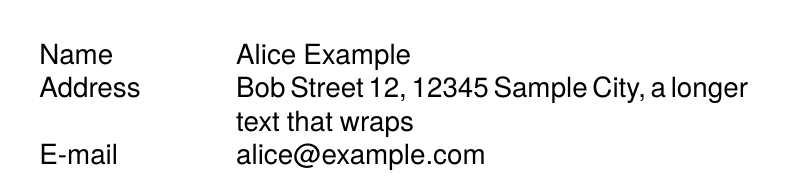
The settings indentation="25mm" and rows="-1" are not required, but they give a hanging indentation: without them, continuation lines start at the left edge of the paragraph, with them they line up below the value.
The tab character can be part of the data or inserted in the layout, either as a separate <Value>	</Value> or in an XPath expression:
<Paragraph textformat="form">
<Value select="concat(@label, '	', @value)"/>
</Paragraph>
Alignment
The position can be followed by the alignment of the text at the stop:
| Setting | Effect |
|---|---|
left | The text starts at the stop (default). |
right | The text ends at the stop. |
center | The text is centered on the stop. |
decimal | Numbers are aligned on the decimal point. |
decimal(',') | Numbers are aligned on the given character, here the comma. |
With decimal, text without the separator ends at the stop, as with right. Whole numbers thus line up correctly, and column heads can use the same setting:
<DefineTextformat name="prices" alignment="leftaligned"
tab-stops="50mm decimal(','), 85mm decimal(',')"/>
...
<Paragraph textformat="prices">
<Value>Coffee	3,50	4,17</Value>
</Paragraph>
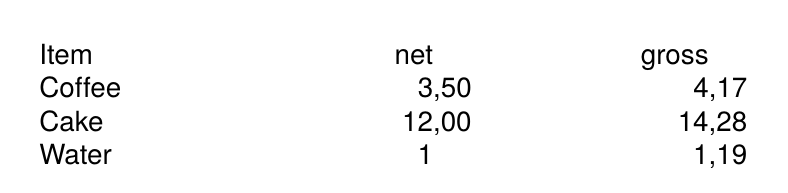
center is useful for example for captions below signature lines: tab-stops="25% center, 75% center".
Leaders
With leader('...') the gap before the stop is filled with the given text, usually with dots. The leaders are at the same positions in all lines, so the dots line up vertically. Spaces in the leader increase the distance between the dots.
<DefineTextformat name="toc" alignment="leftaligned"
indentation="8mm" rows="-1"
tab-stops="8mm, 100% right leader(' . ')"/>
...
<Paragraph textformat="toc">
<Value>2	Tab stops and a rather long title that wraps onto the next line	12</Value>
</Paragraph>
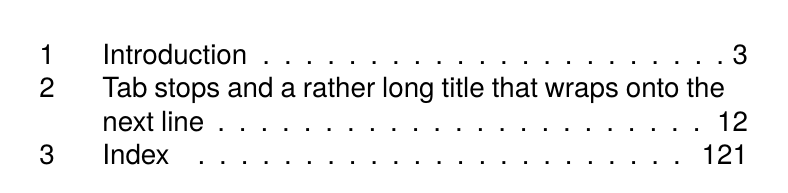
Again the hanging indentation makes a wrapping title continue below the title and not below the chapter number. The right aligned stop puts the page number into the last line.
Details
- A tab always moves to the next stop to the right of the current position. If the text has already passed a stop, that stop is skipped.
- When there are no more stops on the line, the tab is an ordinary space.
- Spaces directly before and after a tab are removed.
Name 	 Valueis the same asName	Value. - Text after a
right,centerordecimalstop is not broken as long as it fits on the line. - Percentages refer to the width of the paragraph, for example the width of the text block or the table cell.
- When
tab-stopsis given, it takes precedence over the attributetab. - Lines with tabs are not stretched in justified text, the other lines of the paragraph are.
Example
A complete order sheet with table of contents, form fields, price list and signature lines, entirely without tables, is in the examples repository.
Tabs or table?
Tabs are suited for single line entries and simple columns within running text, especially when leaders are needed. As soon as cells span several lines, need borders or background colors or run over several pages with a repeated table head, a table is the better choice.