Placing Objects
Everything visible on the page goes through <PlaceObject>. It’s the single command for placing images, text, tables, boxes, and circles. Think of it as “put this thing here.”
The basics
In the simplest case, just wrap your content:
<Record match="data">
  <PlaceObject>
    <Image href="_samplea.pdf" width="5"/>
  </PlaceObject>
</Record>
XTS places the image at the next free grid position. You can also specify exactly where:
<PlaceObject row="4" column="5">
    <Image href="_samplea.pdf" width="5"/>
</PlaceObject>
Drawing order
Objects are drawn in the order they appear in the layout. Later objects overlap earlier ones. This is useful for backgrounds – place a colored box first, then put text on top:
<PlaceObject row="1" column="1" allocate="no">
    <Box width="{sd:number-of-columns()}" height="3" backgroundcolor="lightyellow"/>
</PlaceObject>
<PlaceObject row="1" column="1">
    <TextBlock>
        <Paragraph><Value>Text on a yellow background</Value></Paragraph>
    </TextBlock>
</PlaceObject>
You can also overlay a ready-made page with dynamic content, like adding page numbers to a scanned PDF:
<PlaceObject row="1" column="1">
  <Image file="termsofservice.pdf" width="180mm" height="280mm"/>
</PlaceObject>
<PlaceObject column="1" row="{sd:number-of-rows()}">
  <TextBlock>
    <Paragraph><Value select="sd:current-page()"/></Paragraph>
  </TextBlock>
</PlaceObject>
Width and height
How dimensions work depends on the object type:
- Images, boxes, circles need explicit width/height. You can use grid cells (plain numbers) or absolute values (
5cm,2in). - Text blocks and tables default to the available width (from the start column to the right margin).
<!-- Image: 5 grid cells wide -->
<Image href="_samplea.pdf" width="5"/>

<!-- Image: 5cm wide (absolute) -->
<Image href="_samplea.pdf" width="5cm"/>
Text blocks
A text block is a rectangular area for text that doesn’t break across pages. It’s perfect for headings, captions, labels, and short descriptions.
<PlaceObject>
  <TextBlock>
    <Paragraph style="color: green">
      <Value>green text</Value>
    </Paragraph>
    <Paragraph>
      <Value>this text is in blue (given by CSS)</Value>
    </Paragraph>
  </TextBlock>
</PlaceObject>
A text block can hold multiple <Paragraph> elements. See Text & Styling for all the formatting options.
Images
Including images is straightforward:
<PlaceObject>
    <Image file="_samplea.pdf" width="5cm"/>
</PlaceObject>
XTS supports PDF, JPEG, PNG, and SVG formats. For details on sizing, cropping, and multi-page PDFs, see Images & Graphics.
Boxes
Rectangular colored areas:
<PlaceObject>
  <Box width="4" height="3" backgroundcolor="limegreen"/>
</PlaceObject>
Boxes are commonly used as colored backgrounds behind text or tables. Remember to use allocate="no" on the <PlaceObject> so the box doesn’t block the grid for later content.
Circles
<PlaceObject column="5" row="5">
  <Circle radiusx="3" backgroundcolor="goldenrod"/>
</PlaceObject>
<PlaceObject column="5" row="5">
  <Circle radiusx="1pt" backgroundcolor="black"/>
</PlaceObject>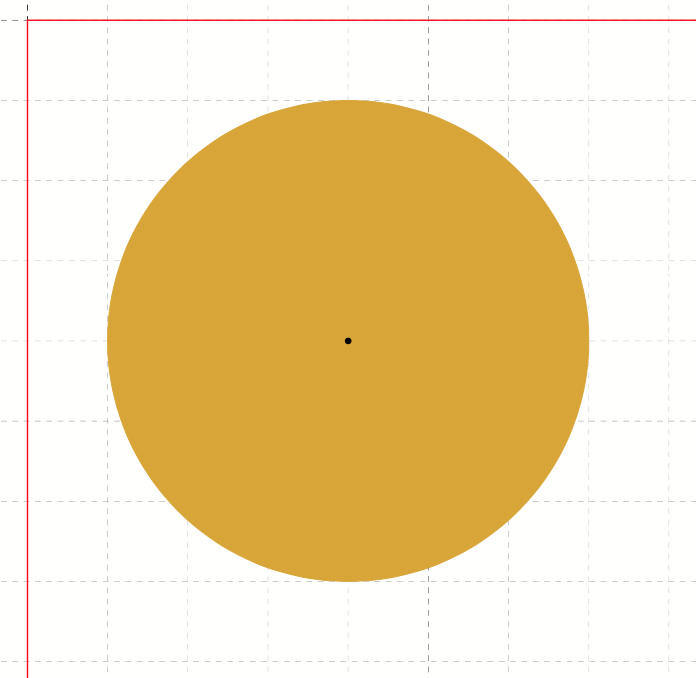
The radius can be in grid cells or absolute units. For ellipses, use both radiusx and radiusy. Circles don’t allocate grid cells by default.
Tables
Tables are placed just like any other object:
<PlaceObject>
  <Table>
    <Tr>
      <Td><Paragraph><Value>Cell 1</Value></Paragraph></Td>
      <Td><Paragraph><Value>Cell 2</Value></Paragraph></Td>
    </Tr>
  </Table>
</PlaceObject>
Tables can span multiple pages (with repeating headers). There’s a whole chapter devoted to them.
Barcodes
Barcodes are rendered via the <HTML> element using the HTML <barcode> tag:
<PlaceObject>
  <HTML>
    <barcode type="code128" value="Hello world" width="5cm" height="1.5cm" />
  </HTML>
</PlaceObject>
You can combine barcodes with text labels and styling, for example:
<Record match="child">
  <PlaceObject column="1">
    <HTML expand-text="yes">
      <div style="width: 5cm">
        <barcode type="code128" value="{.}" width="5cm" height="1.5cm" />
        <br />
        <p style="text-align: center; font-size: 10pt; margin-top: 2pt">
          {.}
        </p>
      </div>
    </HTML>
  </PlaceObject>
</Record>
What’s next?
Learn about positioning areas – how to divide your page into named regions like headers, sidebars, and content areas.