The Grid
Think of the grid as an invisible sheet of graph paper laid over your page. Every object you place snaps to this grid, which keeps things aligned without you having to calculate pixel positions. If you’ve ever seen a newspaper with five neat columns, or a catalog where images and text line up perfectly – that’s grid-based layout.
XTS always works with a grid. Since every publication is different, there’s no magic default. Out of the box, the grid is 1cm x 1cm, which is rarely what you want. So you’ll almost always set it yourself.
Don’t worry – the grid doesn’t limit you. You can always place objects at exact positions using absolute coordinates (like column="5cm" row="12mm"), which is perfect for logos, page numbers, or other elements that need pixel-precise placement. Running text that breaks across pages goes into a <Flow>, which fills the free rows of the grid without snapping its lines to them. The grid is there to help, not to constrain.
Setting up the grid
Use <SetGrid> to define your grid. There are two approaches:
Fixed cell size:
<SetGrid height="12pt" width="5mm"/>Number of cells (XTS calculates the size):
<SetGrid nx="9" ny="9"/>This creates a nine-division – a classic book design pattern. XTS divides the available width into 9 columns and the height into 9 rows.
You can also add gaps between cells, which is common in newspaper layouts:
<SetGrid width="45mm" dx="3mm" height="12pt"/>When the cells do not fit evenly
With a fixed cell size, the page area between the margins is rarely a whole number of cells. XTS rounds the number of cells down, so the grid never reaches into the margin: the margins you give are the minimum. A rest narrower than a cell stays at the right and at the bottom of the page area. With 85mm between the margins and width="10mm", the grid has eight columns and a 5mm rest.
The rest is not lost. An object may reach into it without a warning as long as it ends at the margin, and a <Flow> in a frame that reaches the last row runs on to the bottom margin. If you want the grid to fill the page area exactly, give the number of cells with nx and ny, or choose margins that leave a whole number of cells.
To see your grid while developing, turn on the grid trace:
<Trace grid="yes"/>or run XTS with xts --trace grid. You’ll see something like this:
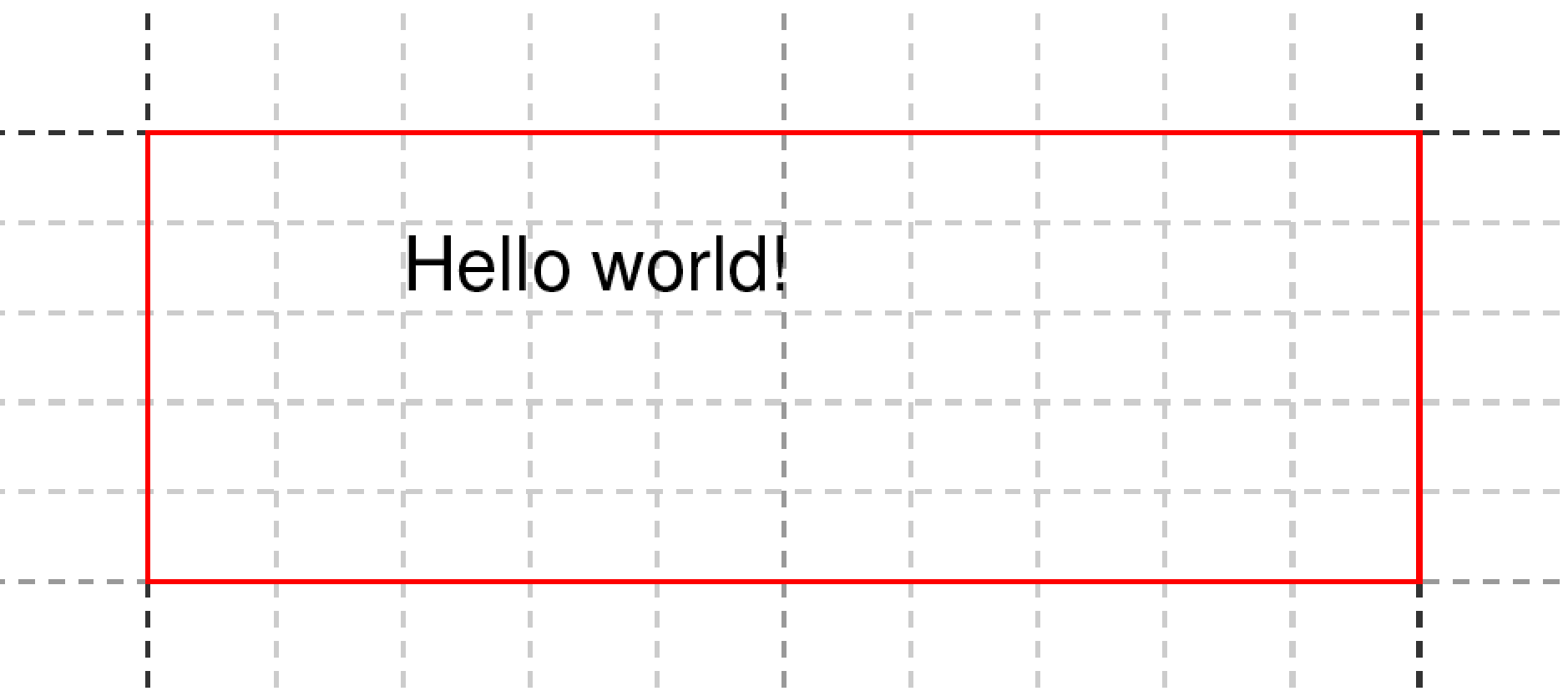
The red line shows the page margin (default: 1cm on each side).
Placing objects on the grid
The origin is the top-left corner at position (1, 1). When you specify row and column on <PlaceObject>, you’re giving grid coordinates:
<!-- Grid-based: column 5, row 4 -->
<PlaceObject row="4" column="5">
    <Image href="_samplea.pdf" width="5"/>
</PlaceObject>

<!-- Absolute: 5cm from left, 12mm from top -->
<PlaceObject row="12mm" column="5cm">
    <Image href="_samplea.pdf" width="5"/>
</PlaceObject>
As soon as both values are lengths (like 5cm or 12mm), XTS switches to absolute positioning. Don’t mix grid and absolute coordinates in a single <PlaceObject>: a length in only one of the two attributes is silently ignored and the coordinate is chosen automatically.
Grid allocation
The grid doesn’t just help you position things – it tracks what’s occupied. When you place an object, its cells are marked as “allocated”, and the cursor and automatic placement skip these cells. Placing an object with explicit coordinates over occupied cells is not reported; only objects that protrude into the page margins produce a warning.
Turn on allocation tracing to see it visually:
<Trace grid="yes" gridallocation="yes"/>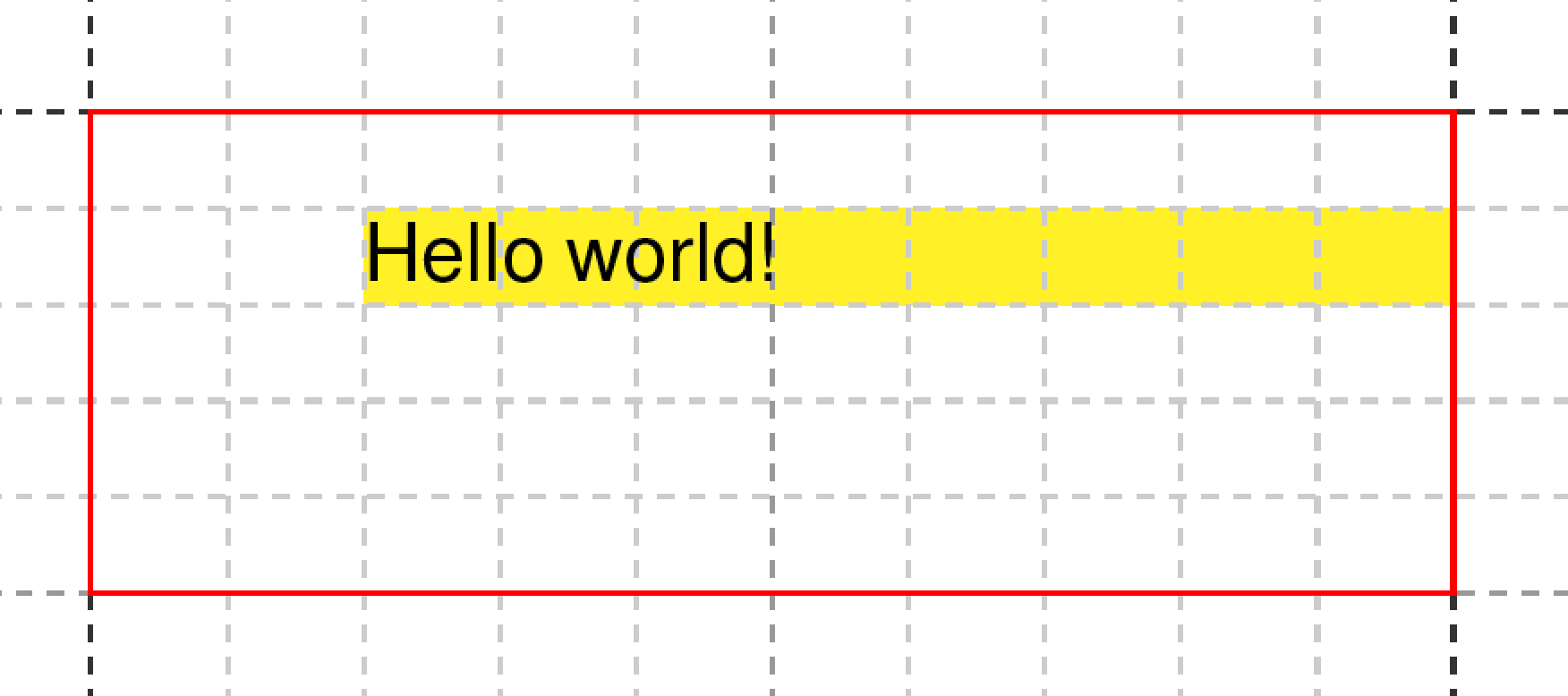
If you want objects to overlap (say, a background image behind text), use allocate="no":
<PlaceObject allocate="no">
    <Box width="4" height="3" background-color="lightyellow"/>
</PlaceObject>
Such an object leaves the cursor where it was, so the next object without coordinates is placed on top of it. Objects positioned with absolute lengths in both column and row never allocate cells, whatever allocate says.
Automatic placement
If you omit row and column, XTS finds the next free position automatically:
<Record match="data">
    <PlaceObject>
        <Image width="4" href="_samplea.pdf"/>
    </PlaceObject>
    <PlaceObject>
        <Image width="4" href="_sampleb.pdf"/>
    </PlaceObject>
</Record>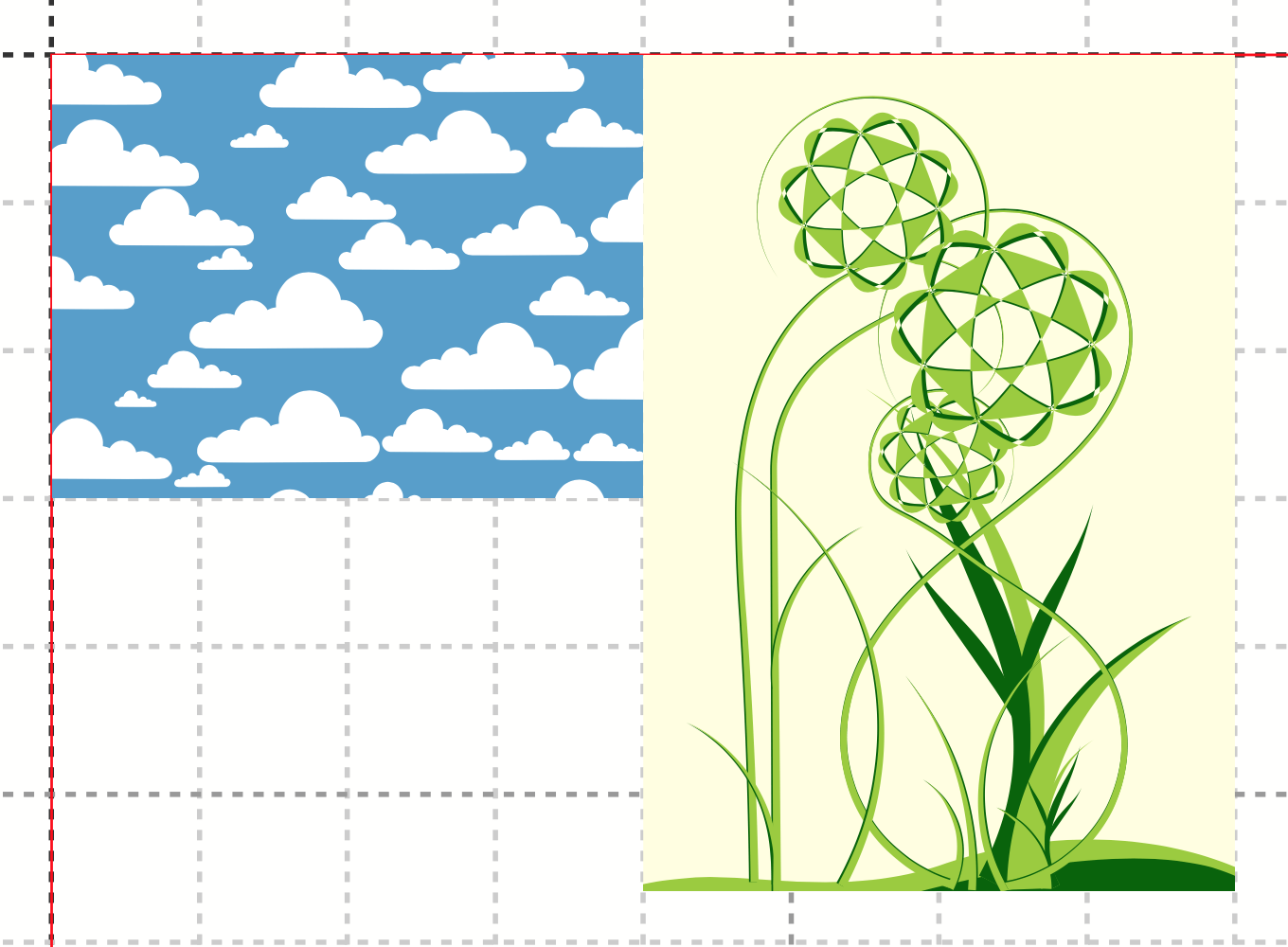
This is how most layouts work in practice – you let XTS flow content into the grid, only specifying explicit positions when you need them.
Alignment within grid cells
Objects don’t always fit the grid perfectly. An image might be 3.7 grid cells wide in a 4-cell space. Use halign and hreference to control alignment:
<!-- Right-align an object at the last column -->
<PlaceObject column="{sd:number-of-columns()}" row="1"
    hreference="right" halign="right">
  <Image href="logo.pdf" width="2.5cm"/>
</PlaceObject>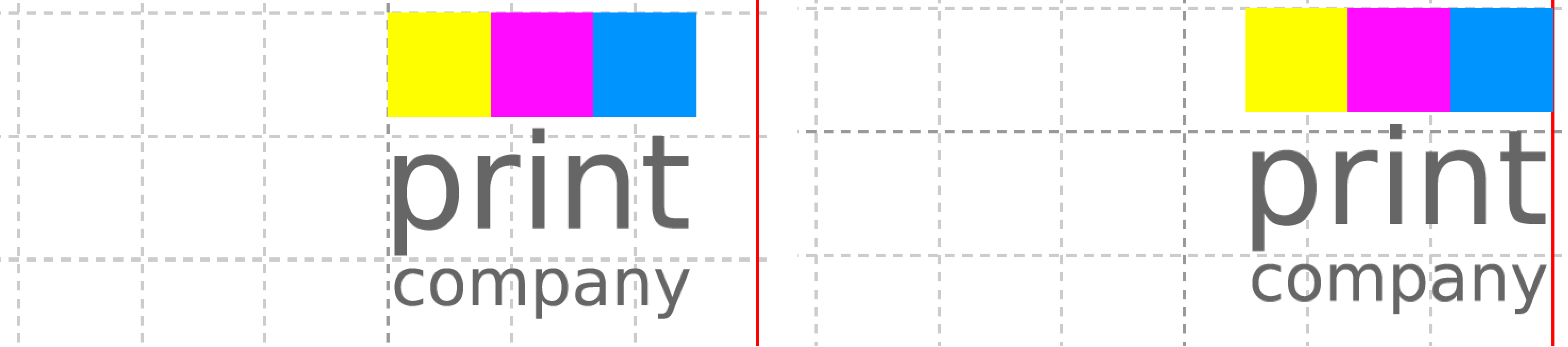
hreference="right", the column refers to the right edge of the object.Grids in slates
A slate works on its own copy of the current page grid: the grid dimensions and margins are taken from the page, but the slate has its own cursor:
<Slate name="table">
    <Contents>
        <PlaceObject>
            <Table width="4" stretch="max">
                <!-- ... -->
            </Table>
        </PlaceObject>
    </Contents>
</Slate>

<PlaceObject slate="table"/>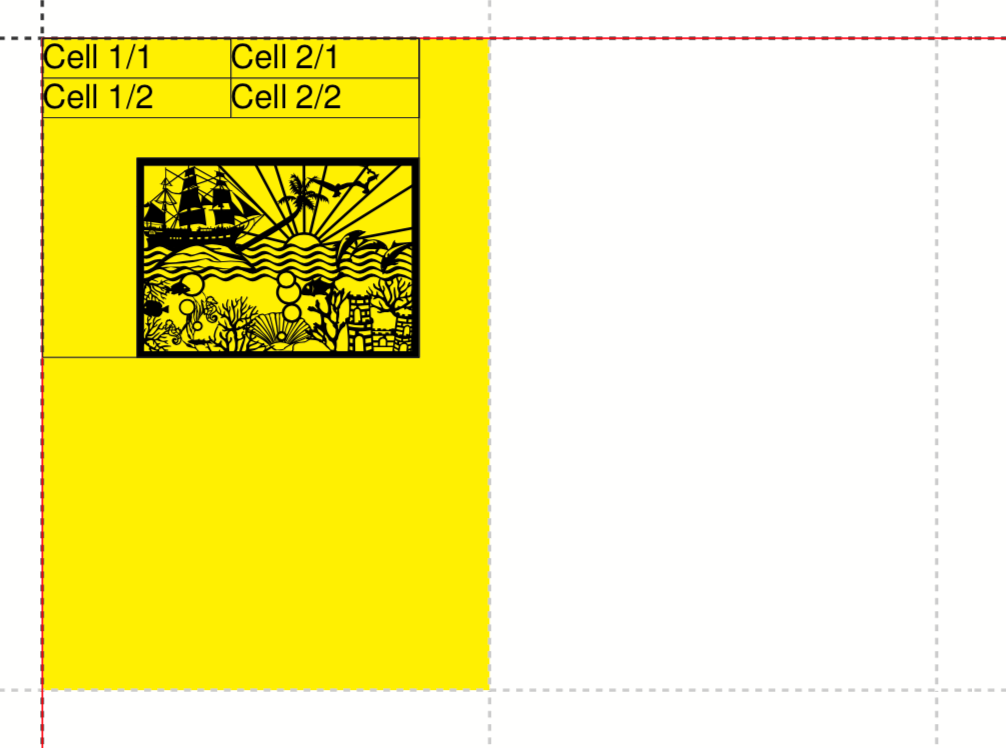
This is useful when you need different grid resolutions for different parts of your layout.
What’s next?
Now that you understand the grid, let’s look at placing objects in more detail – text blocks, images, boxes, circles, and barcodes.