Placing Objects
Everything visible on the page goes through <PlaceObject>. It’s the single command for placing images, text, tables, boxes, and circles. Think of it as “put this thing here.”
The basics
In the simplest case, just wrap your content:
<Record match="data">
  <PlaceObject>
    <Image href="_samplea.pdf" width="5"/>
  </PlaceObject>
</Record>
XTS places the image at the next free grid position. You can also specify exactly where:
<PlaceObject row="4" column="5">
    <Image href="_samplea.pdf" width="5"/>
</PlaceObject>
Drawing order
Objects are drawn in the order they appear in the layout. Later objects overlap earlier ones. This is useful for backgrounds – place a colored box first, then put text on top:
<PlaceObject row="1" column="1" allocate="no">
    <Box width="{sd:number-of-columns()}" height="3" background-color="lightyellow"/>
</PlaceObject>
<PlaceObject row="1" column="1">
    <TextBlock>
        <Paragraph><Value>Text on a yellow background</Value></Paragraph>
    </TextBlock>
</PlaceObject>
You can also overlay a ready-made page with dynamic content, like adding page numbers to a scanned PDF:
<PlaceObject row="1" column="1">
  <Image href="termsofservice.pdf" width="180mm" height="280mm"/>
</PlaceObject>
<PlaceObject column="1" row="{sd:number-of-rows()}">
  <TextBlock>
    <Paragraph><Value select="sd:current-page()"/></Paragraph>
  </TextBlock>
</PlaceObject>
Sometimes the background can only be placed after the content, for example because its size depends on the text. layer="behind" draws an object under everything placed on the page since its AtPageCreation ran, and over what that drew:
<PlaceObject row="1" column="1">
    <TextBlock width="6">
        <Paragraph><Value>Text placed first</Value></Paragraph>
    </TextBlock>
</PlaceObject>
<PlaceObject row="1" column="1" allocate="no" layer="behind">
    <Box width="6" height="2" background-color="lightyellow"/>
</PlaceObject>
Use it for decoration such as panels, tints and rules, not for content: an object placed behind moves earlier in the PDF, so in a tagged PDF it is also read before the text above it. In a slate, layer="behind" draws an object under the slate’s other objects.
Width and height
How dimensions work depends on the object type:
- Images, boxes, circles need explicit width/height. You can use grid cells (plain numbers) or absolute values (
5cm,2in). - Text blocks and tables default to the available width (from the start column to the right margin).
<!-- Image: 5 grid cells wide -->
<Image href="_samplea.pdf" width="5"/>

<!-- Image: 5cm wide (absolute) -->
<Image href="_samplea.pdf" width="5cm"/>
Text blocks
A text block is a rectangular area for text that doesn’t break across pages. It’s perfect for headings, captions, labels, and short descriptions. Running text that should continue on the next page goes into a <Flow>.
<PlaceObject>
  <TextBlock>
    <Paragraph style="color: green">
      <Value>green text</Value>
    </Paragraph>
    <Paragraph>
      <Value>this text is in blue (given by CSS)</Value>
    </Paragraph>
  </TextBlock>
</PlaceObject>
A text block can hold multiple <Paragraph> elements. See Text & Styling for all the formatting options.
Images
Including images is straightforward:
<PlaceObject>
    <Image href="_samplea.pdf" width="5cm"/>
</PlaceObject>
XTS supports PDF, JPEG, PNG, and SVG formats. For details on sizing, cropping, and multi-page PDFs, see Images & Graphics.
Boxes
Rectangular colored areas:
<PlaceObject>
  <Box width="4" height="3" background-color="limegreen"/>
</PlaceObject>
Boxes are commonly used as colored backgrounds behind text or tables. Remember to use allocate="no" on the <PlaceObject> so the box doesn’t block the grid for later content.
Circles
<PlaceObject column="5" row="5">
  <Circle radius-x="3" background-color="goldenrod"/>
</PlaceObject>
<PlaceObject column="5" row="5">
  <Circle radius-x="1pt" background-color="black"/>
</PlaceObject>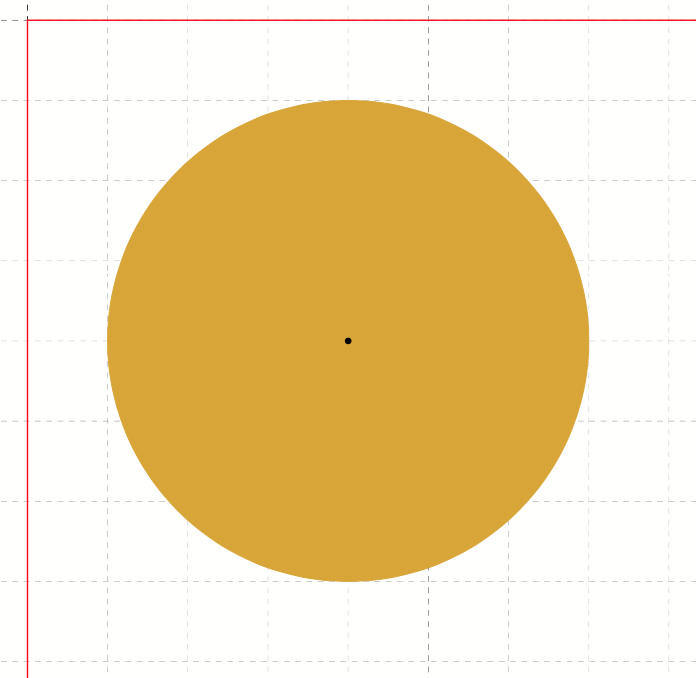
The radius can be in grid cells or absolute units. For ellipses, use both radius-x and radius-y. Like every object, a circle allocates the grid cells of its bounding box unless you set allocate="no".
Tables
Tables are placed just like any other object:
<PlaceObject>
  <Table>
    <Tr>
      <Td><Paragraph><Value>Cell 1</Value></Paragraph></Td>
      <Td><Paragraph><Value>Cell 2</Value></Paragraph></Td>
    </Tr>
  </Table>
</PlaceObject>
A table placed this way is kept in one piece, like any other object. A table that should break across frames and pages, with its header repeated, goes into a <Flow> instead. There’s a whole chapter devoted to tables.
Barcodes
Barcodes are rendered via the <HTML> element using the HTML <barcode> tag:
<PlaceObject>
  <HTML>
    <barcode type="code128" value="Hello world" width="5cm" height="1.5cm" />
  </HTML>
</PlaceObject>
You can combine barcodes with text labels and styling, for example:
<Record match="child">
  <PlaceObject column="1">
    <HTML expand-text="yes">
      <div style="width: 5cm">
        <barcode type="code128" value="{.}" width="5cm" height="1.5cm" />
        <br />
        <p style="text-align: center; font-size: 10pt; margin-top: 2pt">
          {.}
        </p>
      </div>
    </HTML>
  </PlaceObject>
</Record>
What’s next?
Learn about positioning areas – how to divide your page into named regions like headers, sidebars, and content areas.