Using Fonts
XTS supports TrueType (.ttf), OpenType (.otf), and Type 1 (.pfb/.afm) fonts. Loading them is done through CSS @font-face rules – the same syntax you’d use on the web.
Loading font families
A font family groups the regular, bold, italic, and bold-italic variants under one name. Define them in a <StyleSheet> block:
<StyleSheet>
  @font-face {
      font-family: "Minion Pro";
      src: url("MinionPro-Regular.otf");
  }
  @font-face {
      font-family: "Minion Pro";
      src: url("MinionPro-Bold.otf");
      font-weight: bold;
  }
  @font-face {
      font-family: "Minion Pro";
      src: url("MinionPro-It.otf");
      font-style: italic;
  }
  @font-face {
      font-family: "Minion Pro";
      src: url("MinionPro-BoldIt.otf");
      font-weight: bold;
      font-style: italic;
  }
</StyleSheet>
You only need to define the variants you actually use. If you never use bold italic, skip it.
Selecting fonts
Once loaded, use the font family name in your CSS rules:
<StyleSheet>
  body {
    font-family: serif;
  }
  .preface {
    font-family: sans;
  }
</StyleSheet>

<Paragraph>
    <Span class="preface"><Value>Preface</Value></Span>
    <Value> more text</Value>
</Paragraph>
Default fonts
XTS ships with three built-in font families that you can use without loading anything:
| Name | Font | Style |
|---|---|---|
sans |
TeXGyreHeros | Helvetica clone |
serif |
CrimsonPro | Elegant book font |
monospace |
CamingoCode | Coding font |
If you don’t specify a font, XTS uses sans (set in the CSS defaults as the html element’s font-family).
Where to put font files
Font files follow the same rules as all other resources in XTS – see File Organization. In short:
- Put them in the project directory (or a subdirectory)
- Or use
--extradirto add a shared font directory - Or use
--systemfontsto access system-installed fonts
The list-fonts shortcut
To save typing, let XTS scan your fonts and generate the @font-face rules for you:
$ xts list-fonts
@font-face { font-family: "CamingoCode"; src: url("CamingoCode-Bold.ttf"); font-weight: bold; }
@font-face { font-family: "CamingoCode"; src: url("CamingoCode-Regular.ttf"); }
...
Copy the output into your <StyleSheet> block.
OpenType features
OpenType fonts often include optional features like old-style figures, small caps, or fraction rendering. Control them with font-feature-settings:
<StyleSheet>
    .regular {
        font-feature-settings: "lnum", "tnum";
    }
    .smcp {
        font-feature-settings: "smcp";
    }
</StyleSheet>

<Record match="data">
    <PlaceObject>
        <TextBlock>
            <Paragraph class="regular">
                <Value>Tabular figures: 1234567890</Value>
            </Paragraph>
            <Paragraph class="smcp">
                <Value>Small caps: 1234567890</Value>
            </Paragraph>
        </TextBlock>
    </PlaceObject>
</Record>
You can also set features inline:
<Paragraph style="font-feature-settings: 'frac';">
    <Value>Use 1/4 cup of milk.</Value>
</Paragraph>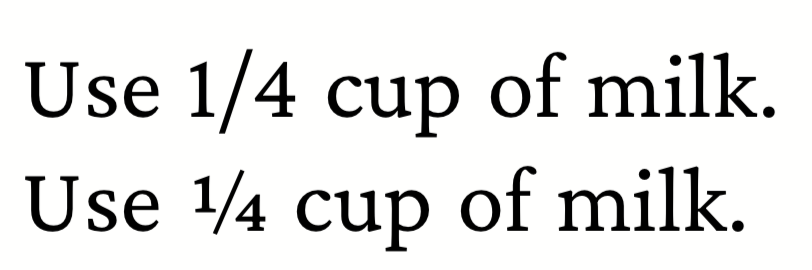
frac feature turns "1/4" into a proper fraction glyph.The full list of OpenType feature tags is in the OpenType spec. XTS enables the same default features as HarfBuzz, minus liga.